
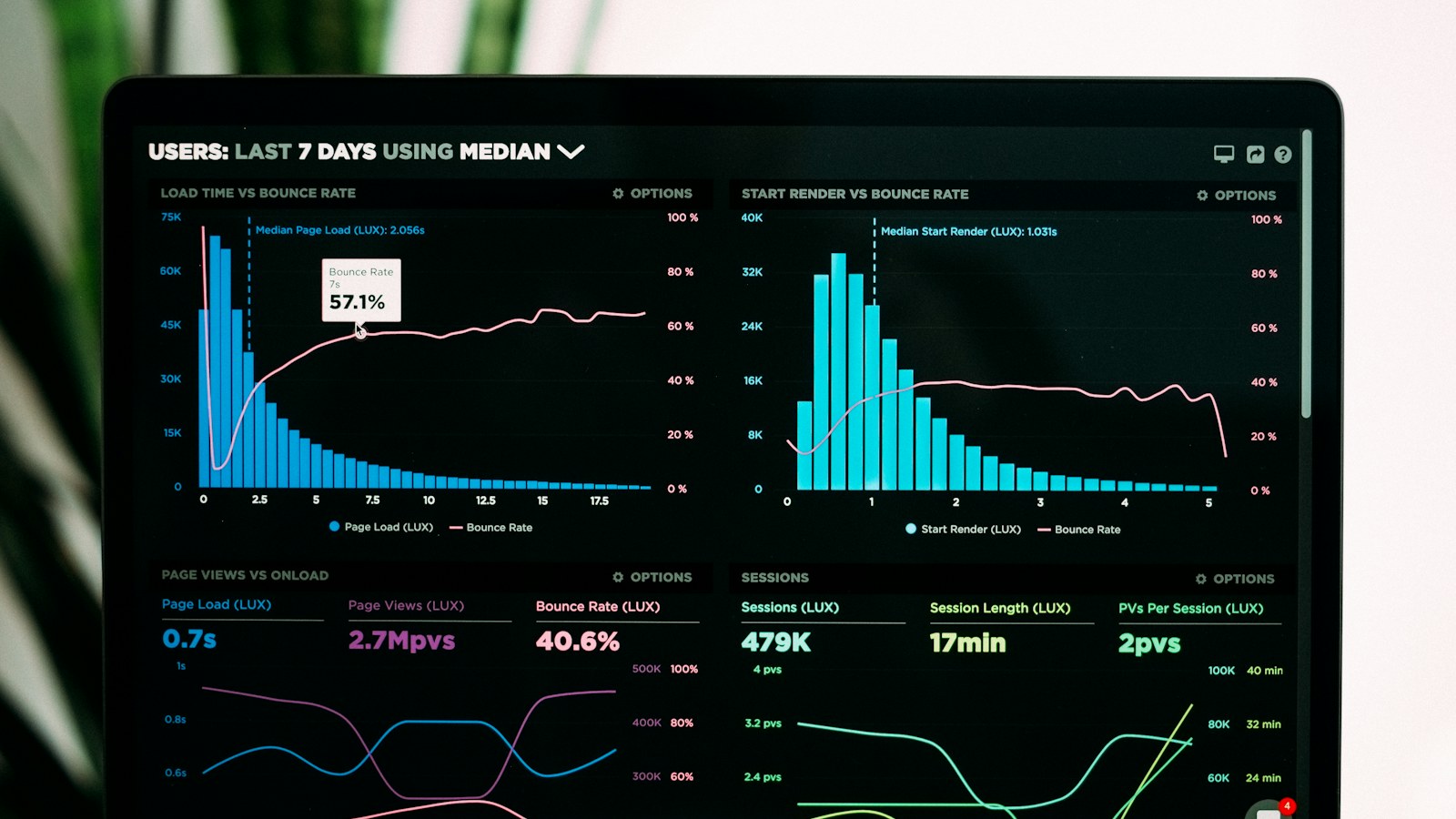
Your website costs money and time. But does it actually bring anything in? To be honest, many business owners don’t know. They see the occasional enquiry arrive, but have no idea how that customer found them, which page convinced them or how many visitors dropped out. We tell every client the same thing: measuring is knowing. Only when you measure do you know who your visitors are, what works and what doesn’t. In this article you will learn how to set that up in an afternoon, with free tools.
Why visitor numbers alone tell you nothing
A thousand visitors a month sounds great. But if none of them call, email or fill in a form, it doesn’t get you very far. And a hundred visitors who are all looking for exactly your service can be worth more than ten thousand passers-by. So don’t just look at how many people visit, look above all at what they do. We call those actions goals or, in Google Analytics, key events: a submitted form, a tap on your phone number, a click on WhatsApp, a quote request or an order.
Step 1: decide what counts as a result for you
First write down what your website needs to do for you. For most businesses that comes down to three or four things:
- a completed contact or quote form;
- a tap on your phone number (on a phone, that means someone calls you straight away);
- a click on your WhatsApp button or your email address;
- for an online shop: a completed order.
Those are your goals. Everything you measure after this revolves around one question: how many of these actions do I get, and where do they come from?
Step 2: set up Google Analytics 4 properly
Google Analytics 4 (GA4) is free and shows how many visitors you have, where they come from and what they do. Already using it? Then check these three settings:
- Data retention. By default GA4 keeps detailed data for only 2 months. Change it to 14 months under Admin → Data collection and modification → Data retention, otherwise you can’t compare with last year later on.
- Key events. Mark the actions from step 1 as key events (these used to be called ‘conversions’). You do this under Admin → Data display → Events, using the star next to the event name.
- Your own visits. Filter out your own IP address or your office’s, so you don’t count your own clicks.
GA4 doesn’t always measure a form or a tap on a phone number by itself. Often your web developer needs to make a small change, for example via Google Tag Manager. For the WordPress websites we manage, we take care of this for you.
Mind the cookie rules. In the EU you usually need your visitor’s consent for Google Analytics, via a proper cookie banner. With Google’s Consent Mode v2, GA4 can still give you a picture of visitors who did not consent. Would you rather measure without a cookie banner at all? Then privacy-friendly alternatives such as Matomo or Plausible are an option.
Step 3: connect Google Search Console
Google Analytics tells you what visitors do on your website. Google Search Console tells you what happened before their click: which search terms you appear for, how often you are shown and how often people click. Search Console keeps 16 months of data and is free as well. Link it to GA4 and you see both worlds side by side. How to set up and read Search Console is explained in Google Search Console for beginners.
Step 4: don’t forget your Business Profile
Many local customers call you straight from Google Maps without ever opening your website. You won’t see those calls anywhere in Google Analytics. In your Google Business Profile, under Performance, you can see how many people viewed your profile, called you, asked for directions or clicked through to your website. How to set up that profile properly is explained in Google Business Profile: complete it in 10 steps.
The five numbers that really matter
You don’t need to understand every chart. Look at these five numbers once a month:
| Number | Where to find it | What it tells you |
|---|---|---|
| Number of enquiries (key events) | GA4 → Engagement → Key events | The only number that relates directly to revenue. |
| Visitors per channel | GA4 → Acquisition → Traffic acquisition | Whether customers come via Google, social media, ads or directly. |
| Conversion rate per channel | Same report, column ‘Session key event rate’ | Which channel brings visitors who actually become customers. |
| Most visited pages | GA4 → Engagement → Pages and screens | Which pages work, and which need attention. |
| Clicks and impressions in Google | Search Console → Performance | Whether you are found more often, and for which terms. |
How to turn numbers into improvements
Measuring only makes sense if you act on it. Three examples of what the numbers can tell you:
- Lots of visits but few enquiries on a services page? Then the page doesn’t convince, or the next step isn’t clear. Look at your text, your photos and your button. Tips are in How to write a services page that brings in enquiries.
- Lots of impressions in Google but few clicks? Then your title and description in the search results don’t appeal. Rewrite them so they say exactly what the searcher is looking for. Which words those are is explained in Keyword research: find out what your customers really search for.
- Visitors on phones drop out faster than on computers? Then your website is probably too slow or awkward on a small screen. How to test that is explained in How to test your website speed.
Change one thing at a time and check a month later whether the number moves. That way you know for sure what made the difference.
And simply ask
Not everything shows up in a dashboard. Someone who looked at your website and calls two weeks later often appears in Google Analytics as ‘direct’ traffic. So ask every new customer: how did you find us? Write the answer down. Together with your numbers, that gives an honest picture of what your website really brings in.
The most common mistakes
- Google Analytics is installed, but no key events have been set up.
- Data retention is still set to 2 months.
- Your own visits and those of your web developer are being counted.
- There is no cookie banner, or the banner blocks all measurement without anyone noticing.
- Data is being collected, but nobody looks at it.
Do you know what your website brings in?
Request a free website check below. We check whether your measurements are set up correctly, which pages bring in enquiries and where you are losing visitors. You will receive a report with concrete improvements within 2 working days.
Book a free consultation Ask your question on WhatsApp
Prefer to call? +31 (0)166 700204, Mon–Fri 9:00–17:30 (CET).