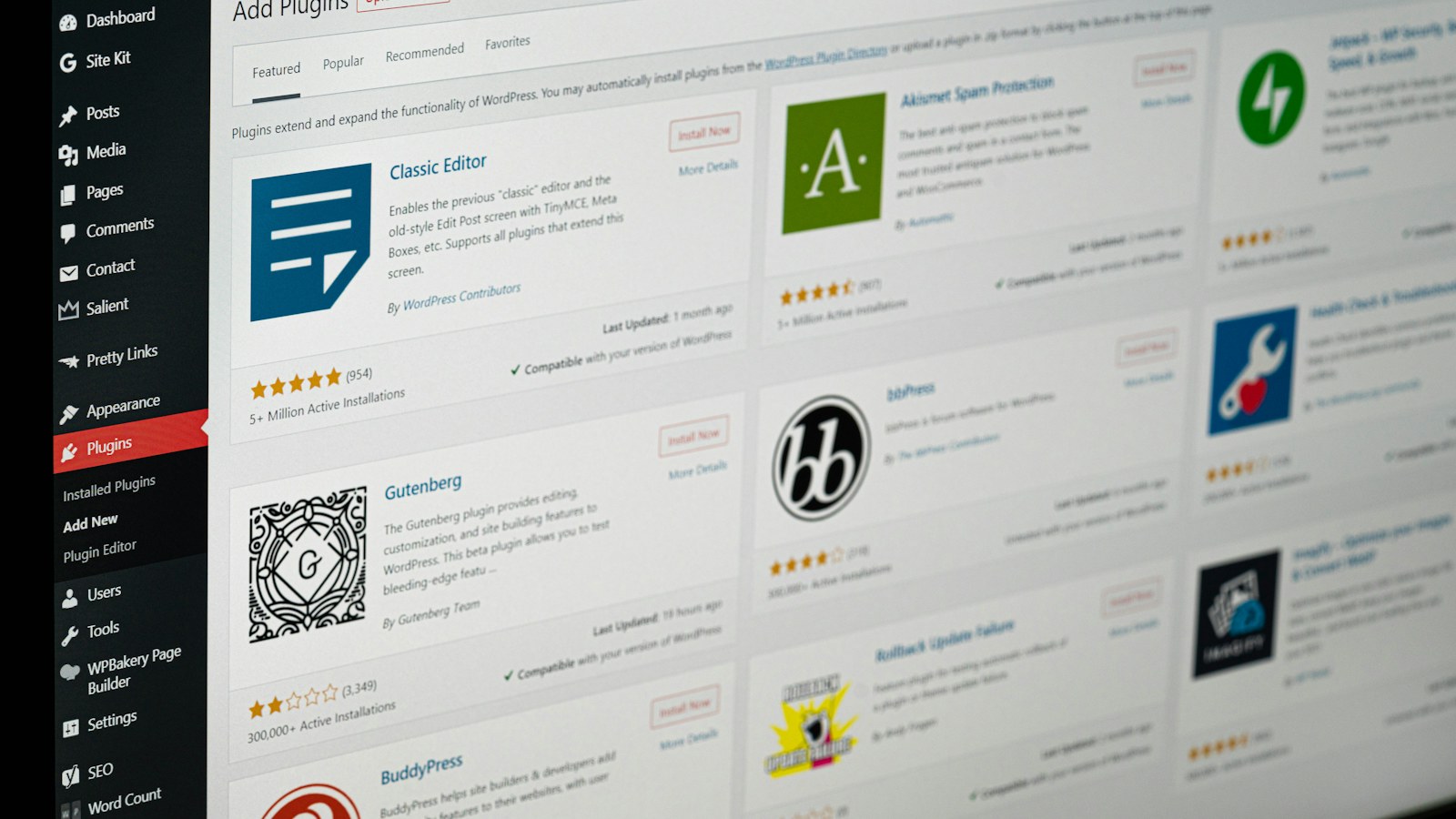
A plugin for the contact form, one for the cookie banner, one for the slider, three for SEO, one you once installed for a company video that’s long gone: before you know it, forty plugins are running on your WordPress website. Every plugin is a piece of code from someone you don’t know, running with full rights on your website. In this article you’ll learn how many plugins is normal, why every plugin is a risk and how to clean up safely, without taking your site down.
How many plugins is too many?
There’s no magic number. A well-built business website usually ends up with 10 to 20 plugins; a web shop with 20 to 35. It’s not about the count, but about quality and necessity. One poorly maintained plugin is more dangerous than ten good ones. If you’re above thirty on an ordinary business site, chances are there are plugins that do the same thing, do nothing anymore, or are no longer updated.
Why every plugin is a risk
- Security. By far most vulnerabilities in WordPress websites are not in WordPress itself, but in plugins and themes: in the annual reports of security companies such as Patchstack, it’s well over nine out of ten reported vulnerabilities. Every plugin is another door an attacker can try.
- Speed. Many plugins load their own scripts and stylesheets on every page, even where they’re not needed. Ten plugins that each cost “only” 100 milliseconds make your site a second slower.
- Conflicts. Two plugins tinkering with the same component (for instance two caching or two SEO plugins) cause unpredictable errors nobody can trace.
- Abandoned plugins. A plugin that hasn’t had an update in two years will one day stop working with a new WordPress or PHP version, and known vulnerabilities will never be fixed.
Step 1: make a list and ask three questions per plugin
In WordPress, go to Plugins and go through the list. For each plugin ask:
- What exactly does it do? If you don’t know, that’s already an answer.
- Do I still use that? The slider on a page that no longer exists, the link to a newsletter service you cancelled, the “coming soon” page from three years ago.
- Does another plugin, the theme or WordPress itself already do this? WordPress can do a lot without plugins these days: scaling images, lazy loading, an XML sitemap. Good themes and form plugins often have a slider, buttons and pop-ups built in.
Step 2: recognise the plugins you can do without anyway
Duplicates: two SEO plugins, two cache plugins, two security plugins, two form plugins. Pick one.
One-off tools: plugins for a migration, an import, a database clean-up or a “regenerate thumbnails” you used once. Remove them, and reinstall if ever needed.
Deactivated plugins. Off is not the same as gone: the files are still on the server and a vulnerability in a disabled plugin can sometimes still be exploited. What’s switched off can go.
Statistics, sharing and widget plugins whose numbers you never look at.
Abandoned plugins: the plugin list shows the date of the last update. Older than a year, or a warning “not tested with your WordPress version”? Look for an alternative.
Step 3: what you do need
A few plugins belong on almost every business website:
- a form plugin for contact and quotes;
- one SEO plugin for titles, descriptions and the sitemap;
- one cache or speed plugin (unless your host handles that on the server, as we do);
- a cookie and privacy plugin if you use statistics or marketing scripts;
- a backup solution, unless your host makes daily backups you can restore; how to make a backup yourself is explained in How to back up your WordPress site;
- a security plugin with a firewall and a limit on login attempts.
Everything beyond that has to earn its place: it must do something your customers see or that brings in revenue.
Step 4: how to choose a new plugin
Need to add something after all? On the plugin page on WordPress.org, look at four things: the number of active installations (preferably tens of thousands or more), the date of the last update (less than a few months ago), the rating (and read a few one-star reviews to see what goes wrong) and whether the developer answers questions in the support forum. A plugin with 300 installations and a last update in 2023 is one you don’t install, however handy it looks.
Step 5: clean up safely
- Make a backup first of files and database. Don’t skip this.
- Deactivate the plugin, don’t delete it yet. Click through your website: homepage, service pages, contact form, web shop checkout.
- Everything fine? Then delete the plugin. Deleting removes the files; some plugins leave tables in the database. Many plugins have a setting “delete all data on uninstall”: turn it on before you delete.
- Do this one plugin at a time. Delete ten at once and something breaks, and you won’t know which one caused it.
- Do you have a test environment (staging)? Do it there first. On the sites we maintain, we test every change on a copy of the site first.
Step 6: keep it clean
Cleaning up is not a one-off. Go through the list every quarter or six months, keep all plugins updated and check after a WordPress or PHP update whether everything still works. You can check which PHP version you’re running in one minute. If a vulnerability in a plugin comes to light for which the developer has no fix yet, waiting is not an option: read how we solve that in Patching vulnerabilities without waiting for the developer.
Don’t fancy doing this yourself every six months? A maintenance plan includes an annual plugin clean-up, updates tested on a copy first and monitoring of known vulnerabilities as standard.
Want to know which plugins can go on your site?
Leave your website address below. We’ll look at which plugins are running, which are outdated or redundant and what they do to your speed and security. You’ll receive a personal report by email with concrete improvements. Free and without obligation.
Book a free consultation Ask your question on WhatsApp
Prefer to call? +31 (0)166 700204, Mon–Fri 9:00–17:30 (CET).